Search the Community
Showing results for tags 'bug report'.
Found 4 results
-
 Wise Care 365 version: 8.0.5.733 PRO OS: Windows 10 22H2, build 19045.7663 Driver: C:\Windows\WiseFs64.sys, FileVersion 3.1.1.433, file date 2026-01-04 Also installed: Wise Folder Hider 5.11.244 SUMMARY A folder on my system is being denied by WiseFs64.sys in a way that gives no indication of what is blocking it. Standard Windows diagnostics all report the folder as healthy, different APIs return different and contradictory errors, and the only way I found to regain access was to disable the filter driver in the registry and reboot. I was unable to find the rule that causes this. The folder is not listed in any Wise application UI I could open, and an exhaustive search of the file system and registry found no stored reference to it. Details are in the section on rule storage below. SYMPTOM The folder E:\kerem\Desktop\Programlama appears in its parent directory listing but its contents cannot be enumerated. dir /a "E:\kerem\Desktop\Programlama" -> "File Not Found", with no "." or ".." entries listed [System.IO.Directory]::EnumerateFileSystemEntries("E:\kerem\Desktop\Programlama") -> UnauthorizedAccessException Two different APIs report two different failures for the same folder. Neither message points to an access-control product, so the natural reading is file system corruption. WHAT WAS RULED OUT icacls MINIPC\kerem has Full Control, both explicit and inherited. No DENY ACE. attrib returns no flags. Not hidden, not system, not read-only. fsutil "not a reparse point". Not a junction or symlink. Get-Item Attributes = Directory only. No encryption flag. chkdsk E: /scan 0 bad file records, 0 unindexed files, index verification clean, "Windows has scanned the file system and found no problems" whoami /groups BUILTIN\Administrators enabled, session is elevated The folder entry itself is present in the parent directory. Comparing full recursive listings taken with the driver disabled and enabled showed the folder path present in both; only its 15 child entries disappear when the driver is loaded. PROCESS MONITOR Operation: QueryDirectory Result: ACCESS DENIED Path: E:\kerem\Desktop\Programlama\* Duration: 0.0000261 FileInformationClass: FileFullDirectoryInformation Call stack (symbols not loaded, nearest-export names): 0 FLTMGR.SYS 1 FLTMGR.SYS 2 FLTMGR.SYS 3 FLTMGR.SYS 4 ntoskrnl.exe IofCallDriver 5 ntoskrnl.exe 6 ntoskrnl.exe NtQueryDirectoryFileEx 7 ntoskrnl.exe 8 ntdll.dll NtQueryDirectoryFileEx 9 KERNELBASE.dll FindFirstFileExW 10+ cmd.exe Two observations. Ntfs.sys does not appear in the stack, so the request is completed inside the filter manager and never reaches the file system. The failing operation is QueryDirectory, not CreateFile, so the directory handle was opened successfully and only the enumeration is refused. The 26 microsecond duration is consistent with a preoperation callback completing the request immediately. IDENTIFYING THE DRIVER fltmc filters listed six third-party minifilters. Process Monitor installs at altitude 385200 and observed the operation, which excludes every filter above that altitude (bindflt 409800, mbamchameleon 400900, ngscan 389310, UCPD 385250.5). WiseFS at 370051 is the highest remaining candidate. Detaching it is refused: fltmc detach WiseFS E: -> detach failed with error: 0x801f0010 (STATUS_FLT_DO_NOT_DETACH) Turning off protection from the application UI has no effect on the driver. After doing so, fltmc instances -f WiseFS still reported all 8 instances attached, including E:. The only method that worked: reg add "HKLM\SYSTEM\CurrentControlSet\Services\WiseFS" /v Start /t REG_DWORD /d 4 /f (reboot) After the reboot the folder was fully accessible. No other change was made, which isolates WiseFs64.sys as the source. WHERE THE RULE IS STORED: NOT FOUND Since the UI could not be opened, I tried to locate the rule that causes the denial. I did not find it anywhere a user can inspect. Searched, no match for the folder name or its full path: HKLM\SYSTEM\CurrentControlSet\Services\WiseFS and all subkeys contains only the standard minifilter registration: ImagePath, Altitude 370051, Flags 0x0, SupportedFeatures 0xf. No path list. %APPDATA%\Wise Folder Hider\Config.ini diskPath is empty, Encrypt=0, no path entries at all %APPDATA%\Wise Care 365\ (all files, ASCII and UTF-16 byte scan) %LOCALAPPDATA% no Wise directories exist C:\Program Files (x86)\Wise\ and C:\Program Files\Wise\ (all files, recursive, ASCII and UTF-16 byte scan) HKLM, HKCU, HKU, HKCR searched for both the folder name and the full path, in key names and value data C:\Program Files (x86)\Wise\Wise Care 365\protect.db looked like the obvious candidate by name, but its last write time is 2024-04-18, while the affected folder was created 2026-07-24 and the driver file dates from 2026-01-04. The folder's NTFS object ID (8e7b62f7f72ef0118cd0d8c0a62fca84) does not appear anywhere in that file either. I also checked whether the folder is tracked by object ID rather than by path. It is not distinctive: 19 of the 20 folders in the same parent directory carry an object ID, so the IDs come from normal Windows link tracking, not from your product. The practical consequence is that a user who cannot open the UI has no way to find out what is blocking the folder, no way to release it, and no way to confirm the rule even exists. WHY THE UI COULD NOT BE USED The Wise Care 365 main window could not be opened to manage the protection entry, because of the window placement bug reported separately: maximizing on a secondary monitor with a negative X origin puts the window outside the virtual desktop, with no taskbar button and no Alt+Tab recovery. The two defects compound. When the UI cannot be reached, the driver keeps enforcing the lock, and there is no supported way to release it. A user without kernel-level troubleshooting experience would conclude the folder is corrupted. For completeness: folders hidden through Wise Folder Hider behave differently on this system. They disappear from the parent directory listing entirely, including on the desktop. The affected folder stays visible and only refuses enumeration, which suggests a different code path. Reinstalling the current version of Wise Folder Hider did not change the behaviour. REQUESTS 1. Make the denial identifiable. Returning ACCESS DENIED with no indication of the source is indistinguishable from file system damage. Consider an entry in the application log recording which path was refused and when. 2. Provide a recovery path that does not require the GUI. A command-line utility, or a documented procedure to list and release protected entries, would avoid the registry workaround entirely. 3. Tell me where the rule lives. If WiseFs64.sys is enforcing a rule I cannot find in any file or registry key, and the folder is not shown in any product UI, then either the storage location is undocumented or the rule is stale and no longer has a matching entry. Both cases are worth investigating. 4. Document the shadow copy attachment behaviour. fltmc instances -f WiseFS shows the driver attached to \Device\HarddiskVolumeShadowCopy4 and \Device\HarddiskVolumeShadowCopy7. In my case a backup taken with Acronis True Image was able to read the protected folder and its contents, so the denial does not apply to that path. This is the desirable outcome for data safety, but it also means protected content is readable from a backup image, which users may not expect from a feature presented as protection. 5. Correct the driver version metadata. WiseFs64.sys reports FileVersion 3.1.1.433 with ProductVersion 1.0.0.1 and an empty CompanyName. The file is also installed directly in C:\Windows rather than C:\Windows\System32\drivers, which is unusual for a kernel driver and complicates identification. SCOPE OBSERVED Comparing recursive listings before and after re-enabling the driver: E drive: 1 folder affected, 15 shortcut files inside it C drive: no protected entries (all differences were transient log and telemetry files) F drive: no differences P drive: not tested (network drive) I can reproduce this on demand and test a build.
-
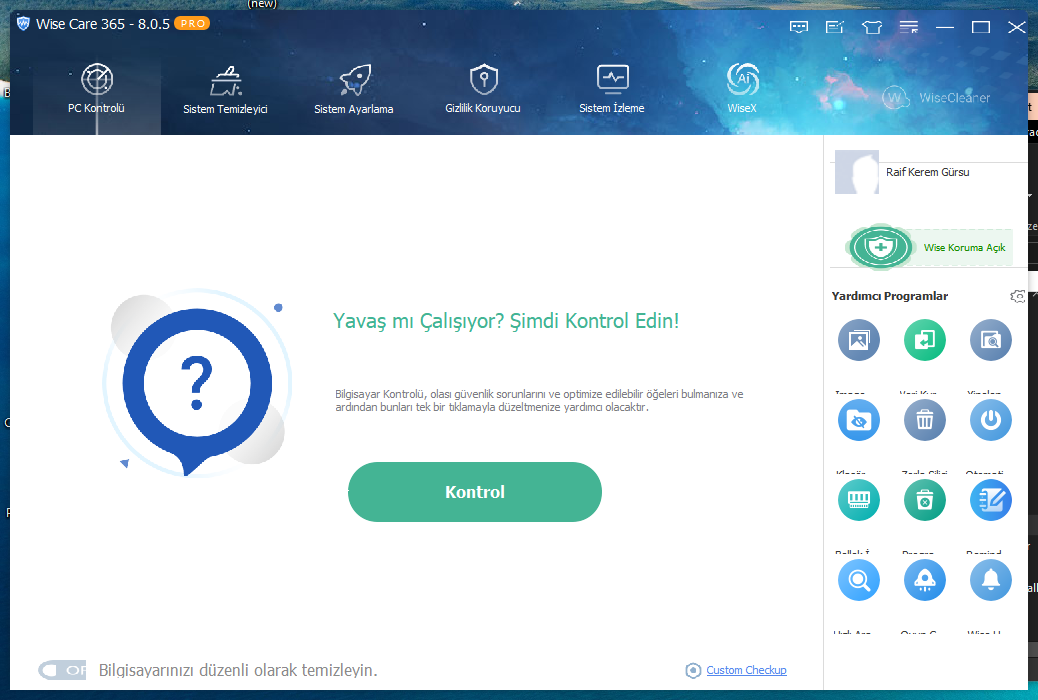
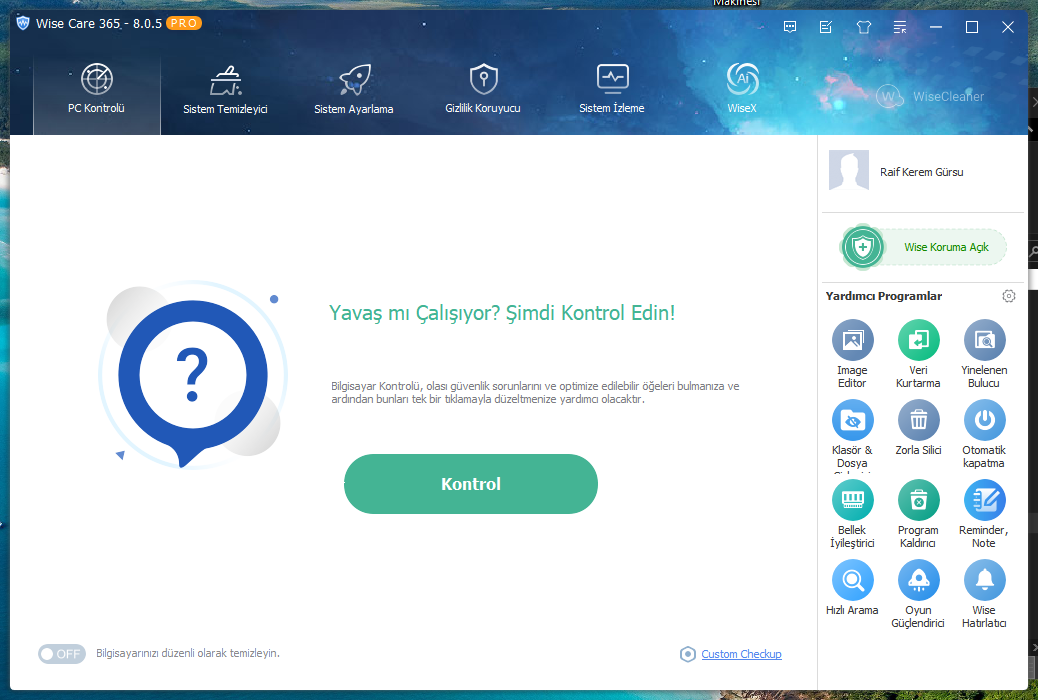
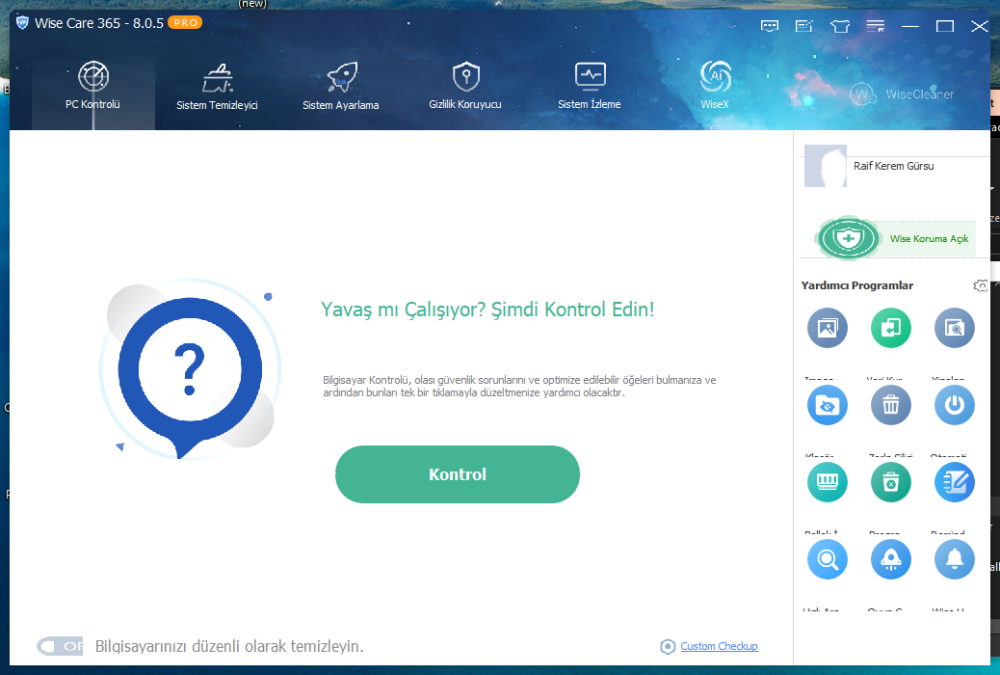
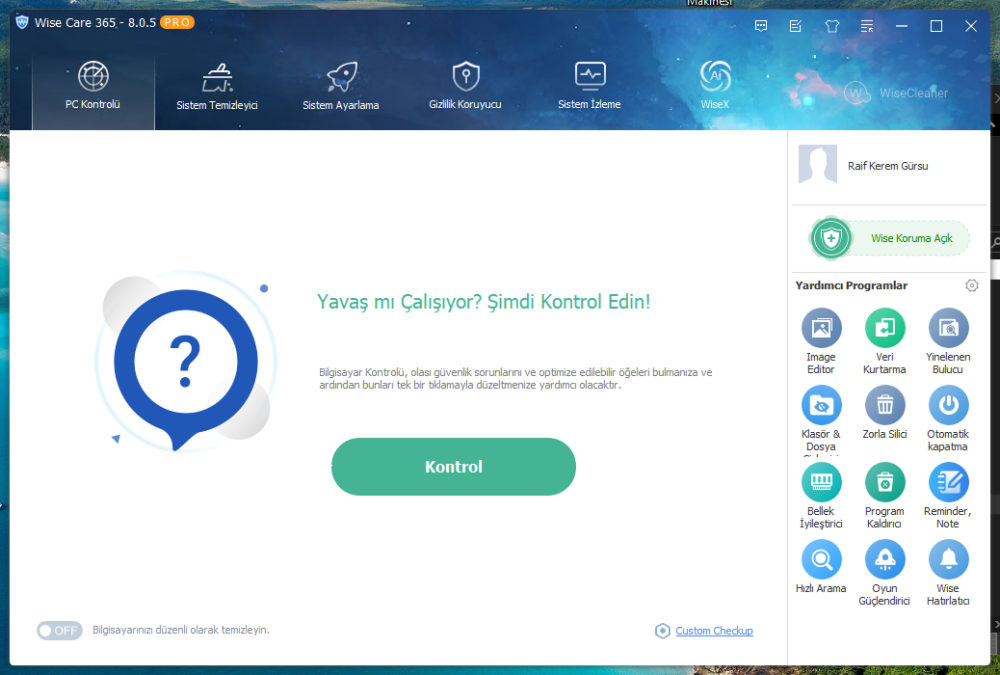
Wise Care 365 version: 8.0.5 PRO OS: Windows 10 22H2, build 19041 SETUP Primary monitor: 900x1600 portrait, 150% scaling, origin (0,0), logical size 600x1067 Secondary monitor: 1920x1080 landscape, 100% scaling, origin (-1920, 0) GetSystemMetrics in a Per-Monitor-V2 context returns SM_XVIRTUALSCREEN = -1920, SM_YVIRTUALSCREEN = 0, SM_CXVIRTUALSCREEN = 2820, SM_CYVIRTUALSCREEN = 1600, so the virtual desktop spans X from -1920 to 900 and Y from 0 to 1600 in physical pixels. No compatibility overrides are set. Task Manager reports the process as Per-Monitor (V2), so Windows performs no DPI virtualization or bitmap stretching here. Both issues below were observed on the secondary monitor, the one at 100% scaling with origin (-1920, 0). ISSUE 1: MAXIMIZED WINDOW LANDS OUTSIDE THE VIRTUAL DESKTOP Symptom Maximizing the main window on the secondary monitor places it almost entirely outside the virtual desktop. It becomes unreachable: the process has no taskbar button, and Alt+Tab does not restore it. Recovery requires an external tool to move the window back. Measurement GetWindowRect on the maximized window: Left -3850 Top -10 Right -1910 Bottom 1090 Size 1940 x 1100 Analysis The size is correct: 1920x1080 plus the 10px invisible resize border on each edge. The vertical axis is correct: Top -10, Bottom 1090 match the monitor's 0..1080 range plus border. Only the X axis is wrong, and it is wrong by exactly -1920, which is the secondary monitor's origin. Expected Left is -1930 (monitor left -1920 minus 10px border). Actual is -1930 + (-1920) = -3850. The overlap with the virtual desktop is 10 pixels wide (-1920 to -1910), entirely inside the invisible resize border, which is why nothing is visible on screen. Probable cause The MINMAXINFO.ptMaxPosition field returned from WM_GETMINMAXINFO is defined in coordinates relative to the target monitor's upper-left corner, not in virtual-screen coordinates. If the application writes the absolute value from GetMonitorInfo (rcWork.left = -1920) into ptMaxPosition.x, Windows adds the monitor origin a second time, producing -3840, and the border adjustment gives the observed -3850. This reproduces only when the target monitor has a non-zero origin. On a single-monitor system, or when maximizing on the primary monitor, the origin is (0,0) and the double offset is invisible. That is likely why this has not been caught in testing. Suggested fix Set ptMaxPosition relative to the monitor: ptMaxPosition.x = rcWork.left - rcMonitor.left ptMaxPosition.y = rcWork.top - rcMonitor.top with rcWork and rcMonitor obtained from GetMonitorInfo on the handle returned by MonitorFromWindow(hwnd, MONITOR_DEFAULTTONEAREST). For a monitor without a taskbar this evaluates to (0,0). As a safety net, clamp the final window rect against the virtual desktop bounds (SM_XVIRTUALSCREEN, SM_YVIRTUALSCREEN, SM_CXVIRTUALSCREEN, SM_CYVIRTUALSCREEN) so the window can never end up unreachable. Reference: https://learn.microsoft.com/en-us/windows/win32/api/winuser/ns-winuser-minmaxinfo ISSUE 2: LAYOUT IS NOT RECALCULATED WHEN THE WINDOW MOVES BETWEEN MONITORS Screenshot attached, captured on the 100% monitor after moving the window there from the 150% monitor. In the Utilities panel on the right, every icon caption is clipped. Captions are truncated horizontally ("Imag...", "Zorla Sili...") and are also cut off vertically by the following row of icons. The right-hand panel itself is clipped at the window edge. This suggests the grid cell height and the panel width are fixed pixel values computed for 96 DPI, while the font is rendered at the current scale factor. The text then overflows the cell and is clipped by the next row. Starting the application directly on the 100% monitor renders correctly, so the layout appears to be computed once at startup and never recalculated when the window changes monitors. Since the process declares Per-Monitor (V2), Windows expects the application to redraw itself on WM_DPICHANGED, including recreating fonts and bitmap resources at the new scale factor, and to use the suggested rectangle passed in lParam. I have this monitor configuration available and can test a build.
-
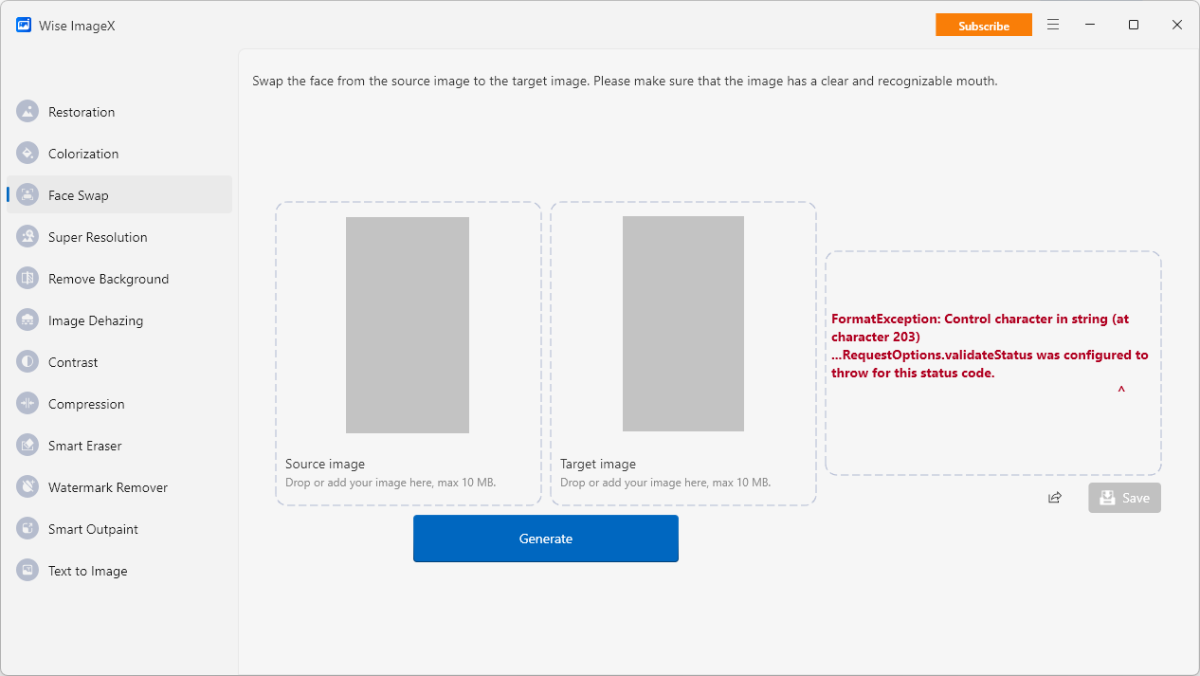
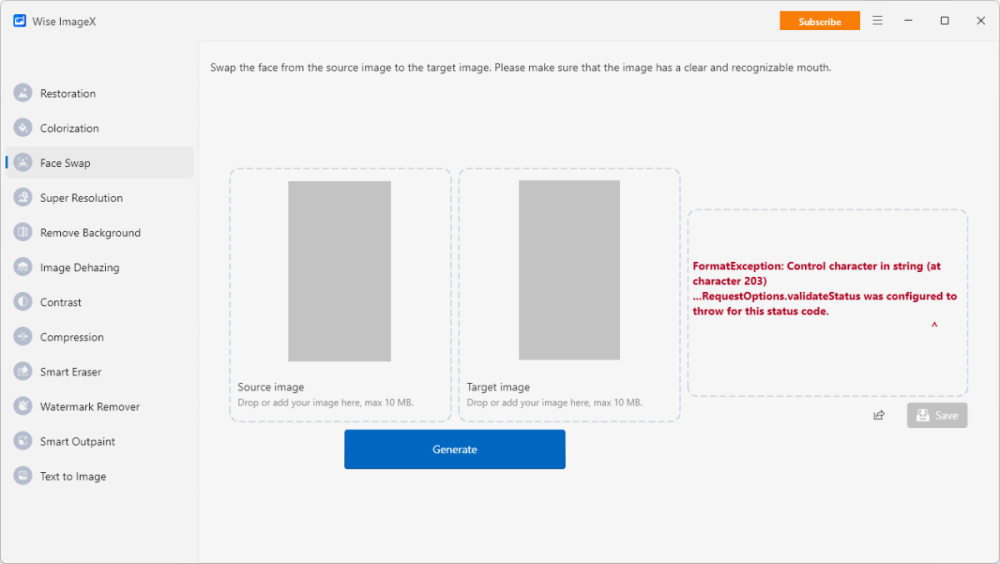
 Hello WiseCleaner team, I have been using **Wise ImageX** and encountered a recurring error when trying to use the **Face Swap** feature. The issue started on **May 27, 2026** and persists until today. **Steps to reproduce:** 1. Open Wise ImageX. 2. Go to **Face Swap** from the sidebar. 3. Upload a valid source image (clear, recognizable face/mouth). 4. Upload a target image (also clear, max 10 MB). 5. Click the **Generate** button. **Result:** The process fails and shows the following error message: > `FormatException: Control character in string (at character 203)` > `...RequestOptions.validateStatus was configured to throw for this status code.` **Expected behavior:** The face swap should complete successfully and produce the output image. **Additional info:** - I made sure both images are within the 10 MB limit and have clear facial features. - Other features like Restoration, Colorization, and Remove Background work normally. - The error appears consistently every time I try Face Swap. - My system is up to date, and I have reinstalled the app – the issue remains. Could you please look into this and provide a fix? Let me know if you need any logs or sample images from my side. Thank you for your support!
-
I'm experiencing an error when trying to use the Face Swap feature in Wise ImageX version 1.4.4. Every time I attempt to use this function, I receive the following CUDA/CUDNN runtime error: This appears to be related to a GPU acceleration issue with the CUDNN library that the software uses for neural network operations. System details: Wise ImageX version: 1.4.4 Operating System: Windows 11 - Version: 10.0.22631 Build 22631 GPU: Nvidia 4060 Ti Has anyone else encountered this issue or found a solution? Any assistance would be greatly appreciated.